
From Text to Diagram: Mastering UML Use Case Modeling with VPasCode
In modern software architecture, documentation is often the most overlooked yet critical component of the development lifecycle. The “Diagram-as-Code” workflow represents a paradigm shift, moving away from static, hard-to-edit images toward dynamic, text-based specifications. This tutorial explores how to leverage PlantUML within the Visual Paradigm VPasCode editor to create, render, and maintain UML Use Case diagrams. By treating your architecture as source code, you gain version control, AI-assisted generation, and seamless integration with your project documentation.
Understanding the Core Concept: What is a Use Case Diagram?
A UML Use Case diagram is a behavioral diagram that illustrates the functional requirements of a system. It answers two fundamental questions:
- Who is using the system? (The Actors)
- What can the system do for them? (The Use Cases)
Unlike a static image, a text-based diagram allows you to define these interactions using a simple, human-readable syntax. When you edit the text, the diagram updates automatically, ensuring your visual documentation always matches your system’s actual logic.
The VPasCode Workflow: Edit, Render, Document
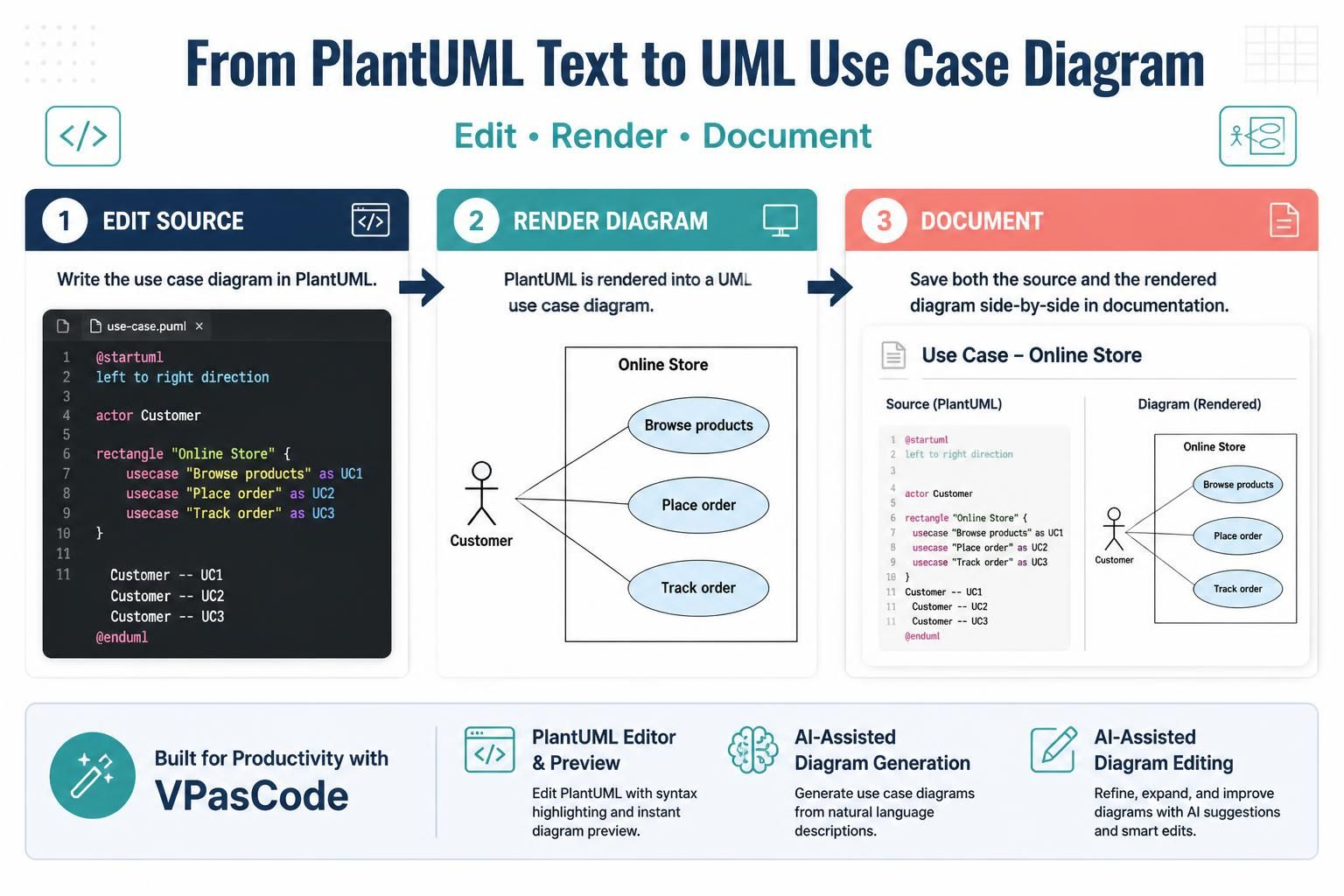
The VPasCode editor facilitates a streamlined “Diagram-as-Code” process. As visualized in the workflow below, the process is divided into three distinct stages.
Step 1: Edit Source (The Code)
The foundation of this workflow is the source file (typically ending in .puml). Instead of drawing shapes on a canvas, you define the system’s structure using PlantUML directives. The code is structured logically:
- Scope Definition: You define the direction of the diagram and the boundaries of the system.
- Actor Declaration: You identify the users or external systems.
- Use Case Definition: You list the specific functions the system performs.
- Relationship Mapping: You link actors to use cases using arrows.
Step 2: Render Diagram (The Visualization)
Once the source code is written, the VPasCode engine parses the text and renders it into a professional UML diagram. This “preview” mode allows you to validate the visual layout instantly without leaving your editor. The rendering engine handles the spacing, alignment, and styling, ensuring the output meets industry standards.
Step 3: Document (The Deliverable)
The final step is documentation. A major advantage of this workflow is the ability to keep the source code and the rendered diagram side-by-side. This provides a “living document” where stakeholders can read the technical logic (the code) while viewing the visual abstraction (the diagram) simultaneously. This eliminates the common problem of diagrams becoming outdated as soon as the code changes.
Hands-On Example: Building an “Online Store” System
Let’s walk through the actual code required to model an “Online Store” system. We will define an actor named “Customer” and three distinct use cases: browsing products, placing an order, and tracking an order.
Copy the following PlantUML syntax into your VPasCode editor:
@startuml
left to right direction

actor Customer

rectangle "Online Store" {
    usecase "Browse products" as UC1
    usecase "Place order" as UC2
    usecase "Track order" as UC3
}

Customer -- UC1
Customer -- UC2
Customer -- UC3
@enduml
Code Breakdown
@startuml</code> / <code>@endumlrectangle "Online Store": This defines the system boundary. Any use case defined inside these braces belongs to this system.usecase ... as UC1: This creates an oval shape labeled “Browse products” and assigns it the internal IDUC1. Using IDs makes referencing actors in relationships easier.Customer— UC1: This draws a solid line connecting the Actor to the Use Case, representing an association.
Leveraging AI for Productivity
The VPasCode editor goes beyond simple text-to-diagram conversion. It integrates AI-Assisted Diagram Generation. Instead of manually typing every actor and relationship, you can provide a natural language description (e.g., “Create a use case diagram for a library system with a Librarian and a Book”). The AI will generate the corresponding PlantUML code, which you can then refine.
Additionally, the editor offers AI-Assisted Diagram Editing. If you have a complex diagram that is hard to read, the AI can suggest smart edits to restructure the nodes, rename ambiguous labels, or add missing relationships, effectively acting as an architect reviewing your work.
Conclusion
Moving from manual drawing to text-based modeling with VPasCode and PlantUML empowers technical teams to treat diagrams as first-class citizens in the development process. By maintaining the source code alongside the rendered output, you ensure that your system architecture is always accurate, up-to-date, and perfectly documented.