
Mastering VPasCode: The AI-Driven Pipeline from Desktop to Diagram-as-Code
In modern software architecture, the boundary between visual modeling and code-based documentation is increasingly blurred. The Visual Paradigm ecosystem bridges this gap through the Pipeline, a centralized repository that facilitates the flow of artifacts between the Visual Paradigm Desktop (the robust modeling environment) and VPasCode (the cloud-based, code-centric editor).
This tutorial explains the system architecture behind this workflow, guiding you through the process of retrieving diagrams from the Pipeline and leveraging the powerful “Diagram-as-Code” conversion feature to edit models programmatically.
Understanding the System Architecture
The workflow relies on three distinct components working in unison to support a seamless transition from visual design to text-based editing.
- Visual Paradigm Desktop: The source environment where complex diagrams are initially created using a rich, graphical user interface (GUI). This is where high-fidelity modeling occurs.
- The Pipeline: Acting as the “handoff point,” this is a cloud-based storage mechanism. It serves as the bridge, allowing you to export (send) artifacts from Desktop and retrieve them in other tools like VPasCode or OpenDocs.
- VPasCode: The target environment for this tutorial. It allows users to retrieve the artifacts from the Pipeline and converts the visual model into code (PlantUML, Mermaid, or Graphviz) for text-based manipulation.
Step-by-Step: Retrieving and Editing a Diagram
To begin this workflow, you must first ensure that a diagram has been exported from Visual Paradigm Desktop to the Pipeline. Once the artifact is available in the cloud, follow these steps to retrieve and convert it.
1. Accessing the Pipeline Interface
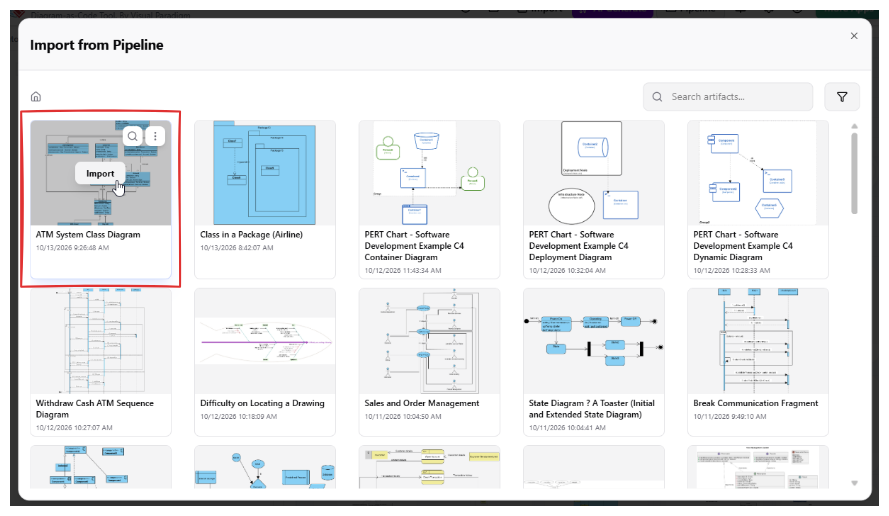
Open the VPasCode application. Locate the Pipeline button at the top of the page and click it to open the Pipeline window. This interface displays a grid of available artifacts.
2. Locating the Artifact
Browse the grid to find the specific diagram you wish to work on. As shown in the system interface, artifacts are displayed with thumbnails and metadata (such as the creation date). You may see various types of diagrams, such as Class Diagrams, Sequence Diagrams, or C4 Container Diagrams.
3. Importing and Converting
Once you have identified the correct diagram (e.g., an “ATM System Class Diagram”), hover your mouse over the artifact card. You will see a set of action icons in the top-right corner of the thumbnail. Click the Import button.
Visual Reference:
[System UI Context: In the “Import from Pipeline” view, the user hovers over a Class Diagram thumbnail. A tooltip or button labeled “Import” is highlighted, indicating the start of the conversion process.]
4. The Code-Based Editing Environment
Upon clicking Import, the system automatically attempts to convert the visual model into a code representation. The diagram code loads directly into the VPasCode editor. The specific syntax depends on the diagram type and supported conversion capabilities:
- PlantUML: Often used for Class, Sequence, and Activity diagrams.
- Mermaid: Frequently used for flowcharts and sequence diagrams.
- Graphviz: Used for specific graph structures.
Once the code is loaded, you can edit the text directly. Because the diagram is now code, you can leverage standard text editors, version control (Git), and collaborative editing tools to refine your architecture.
Technical Nuances of Diagram Conversion
While the Pipeline feature is powerful, it is essential to understand the technical constraints regarding “Diagram-as-Code” conversion.
1. Representation Differences
Visual models and text-based diagram code are fundamentally different representations. A visual model relies on spatial arrangement and graphical primitives, whereas code relies on syntax and structure. Consequently, they are not fully compatible.
2. Conversion Limitations
Not every diagram type sent to the Pipeline supports conversion. Furthermore, even for supported diagrams, the converted code may not match the original visual diagram in every detail. Visual Paradigm aims to retain as much content as possible, but differences in capabilities between the visual engine and the code engine (PlantUML/Mermaid) may result in discrepancies.
3. Best Practice: Verification
Always review the imported code and its rendered output. Do not assume it is an exact pixel-perfect reproduction of the original model. Use the code environment to extend the diagram’s usefulness, but verify that the logic holds true.
Integration with OpenDocs
This workflow also supports documentation needs through OpenDocs. While this tutorial focuses on the new diagram-as-code capabilities in VPasCode, the Pipeline artifacts can also be retrieved and utilized within OpenDocs to generate technical documentation. This makes the Pipeline a versatile hub for both development (VPasCode) and documentation (OpenDocs).
Conclusion
The integration of Visual Paradigm Desktop, the Pipeline, and VPasCode extends the role of the Pipeline as a connection point across tools. By exporting a supported diagram from Desktop, retrieving it in VPasCode, and editing it in PlantUML, Mermaid, or Graphviz, you can combine the precision of visual modeling with the flexibility of code-centric editing.
Start exploring the Visual Paradigm Desktop Pipeline feature today to unlock these advanced diagram management capabilities.