
Mastering UML Sequence Diagrams: Visualizing System Interactions with Visual Paradigm
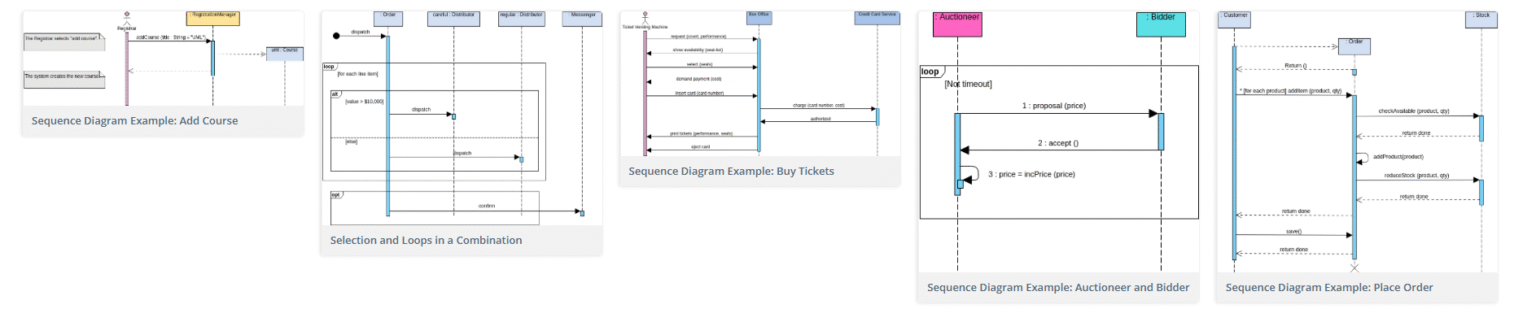
In the realm of software engineering, understanding how different parts of a system communicate is just as critical as understanding the code itself. The Sequence Diagram is the industry-standard tool for visualizing these interactions. By focusing on the order of messages exchanged between objects over time, these diagrams transform abstract logic into a concrete, easy-to-understand timeline of events.
Whether you are designing an e-commerce platform, an ATM withdrawal system, or a complex auction network, mastering sequence diagrams helps teams collaborate effectively. In this tutorial, we will deconstruct the anatomy of these diagrams and demonstrate how to leverage Visual Paradigm to create professional, industry-compliant models.
The Anatomy of a Sequence Diagram
Before drawing a single arrow, it is essential to understand the fundamental building blocks of a sequence diagram. Each element serves a specific purpose in telling the story of a system’s behavior.
1. Actors
Actors represent the initiators of the interaction. They are the people, systems, or external entities that trigger the process. In an ATM scenario, the actor might be a Customer; in a web application, it could be a Browser.
2. Lifelines
Once an actor initiates a request, the system responds through various objects. These are represented by Lifelines—vertical dashed lines extending downwards. A lifeline represents the existence of an object or component during the interaction, indicating its “lifespan” within the context of that specific scenario.
3. Messages
The core of the diagram lies in the communication between lifelines. Messages are depicted as horizontal arrows connecting one lifeline to another. They represent requests, responses, or signals. The sequence of these arrows from top to bottom dictates the chronological order of operations.
4. Activation Bars
When an object receives a message and begins processing it, it becomes active. This period is visualized by a thin rectangle placed on the lifeline, known as an Activation Bar. The length of the bar corresponds to the duration of the operation, helping you visualize exactly when an object is busy.
Advanced Modeling Patterns
Real-world systems rarely follow a linear path. They involve loops, conditional logic, and complex interactions. Visual Paradigm allows you to model these complexities using standard UML fragments.
Handling Loops and Conditions
Consider a scenario where a user might try to withdraw money multiple times if the transaction fails, or a system that searches through a list of items. Sequence diagrams use Frames (dashed rectangles) to group these behaviors.
- Loop: Indicates that the enclosed sequence of messages repeats until a condition is met. For example, a “Buy Tickets” process might loop through a list of available seats.
- Alt (Alternative): Represents conditional branching (if/else). The system takes one path if a condition is true, and another if it is false.
Collaborative Interactions
Complex scenarios, such as an online auction, involve multiple stakeholders. In an Auctioneer and Bidder diagram, you might see a “loop” where the Auctioneer waits for proposals. If a timeout occurs, the loop breaks, and the process terminates. This visual feedback is crucial for debugging logic flows.
Implementing Models with Visual Paradigm
To bring these concepts to life, you need robust tooling. Visual Paradigm is a powerful, free UML tool designed specifically to streamline the modeling process. It offers a user-friendly interface that supports drag-and-drop functionality, making it easy to construct intricate sequence diagrams.
Step-by-Step Workflow in Visual Paradigm
- Start the Project: Open Visual Paradigm and select “New Diagram.” Choose “Sequence Diagram” from the list of available types.
- Add Participants: Drag and drop your Actors (left side) and System Objects (right side) onto the canvas. Visual Paradigm automatically generates the necessary lifelines.
- Define Messages: Select the “Message” tool. Click and drag from the sending lifeline to the receiving lifeline to create the interaction arrow. You can label these messages with method names (e.g.,
withdraw()oraddProduct()). - Apply Logic: Use the “Interaction Fragment” menu to add
looporaltframes. Visual Paradigm provides a dedicated editor where you can define the specific conditions (e.g.,[price > 5000]) that control the flow. - Refine and Export: Once your diagram is complete, you can customize the layout, add activation bars, and export the diagram as an image or document for your team.
Case Study: The Auction System
Let’s look at a practical example involving an Auctioneer and a Bidder. In this scenario, the system must handle the complexity of time-outs and repeated offers.
@startuml
participant Auctioneer
participant Bidder

loop [Not timeout]
    Auctioneer -> Bidder: 1: proposal (price)
    Bidder -> Auctioneer: 2: accept ()
    Auctioneer -> Auctioneer: 3: price = incPrice (price)
end

Auctioneer -> Bidder: End of auction
@enduml
In this snippet, the loop frame ensures that the auction continues as long as the time has not run out. The interaction between the Auctioneer and Bidder is clearly defined by the numbered messages, making the flow of the auction logic transparent.
Conclusion
Sequence diagrams are more than just drawings; they are the blueprints of system behavior. By mastering the elements of Actors, Lifelines, Messages, and Activation Bars, you can communicate complex technical requirements with clarity. With the aid of Visual Paradigm, you have a versatile tool that simplifies the creation of these diagrams, allowing you to focus on the logic and design rather than the mechanics of drawing.