Master Multilingual Diagrams with VPasCode AI and PlantUML
In the modern landscape of software development, requirements often come from global stakeholders who speak different languages. Traditionally, creating visual diagrams like Use Case or Sequence diagrams required developers to either be bilingual or rely on manual translation tools, which often break the formatting of technical diagrams. VPasCode (Visual Paradigm as Code) addresses this friction by integrating AI Language Translation directly into the modeling workflow.
This tutorial explores how to leverage the AI capabilities within VPasCode to instantly translate diagram text, allowing teams to adapt diagrams for international audiences without losing the structural integrity of the code.
Understanding the VPasCode Workflow
VPasCode operates on a “Diagram-as-Code” philosophy. Instead of dragging and dropping shapes on a canvas, users write text-based code (specifically using the PlantUML syntax) on the left side of the interface. The system renders this code into a visual diagram on the right in real-time.
The process typically follows these steps:
- Write Code: The developer defines actors, use cases, and relationships using standard PlantUML syntax.
- Render: The engine parses the text and generates the visual representation.
- Review & Modify: The diagram is checked for logic and design.
- Translate: The AI tool is invoked to adapt the text for a new audience.
Step-by-Step: Using AI Language Translation
The core feature highlighted in this context is the ability to translate text directly from the code editor. This is particularly useful when you have a “Checkout System” diagram written in English that needs to be presented to a Japanese or German team.
1. Identify the AI Menu
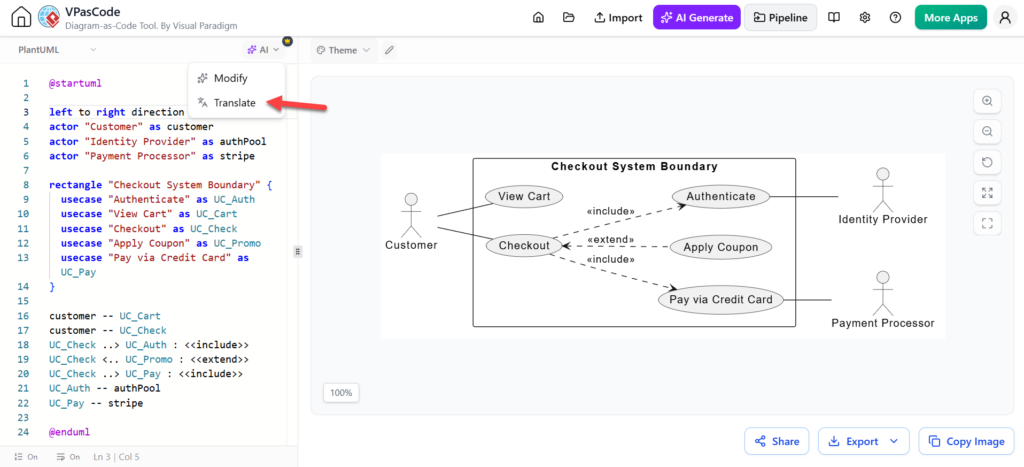
Within the VPasCode editor interface, look for the AI icon located in the toolbar. This icon acts as the gateway to generative AI features, including code generation and, crucially, translation.
2. Trigger the Translation
To translate a diagram, click the AI button. A dropdown menu will appear offering various actions. Select the Translate option. The interface is designed to allow you to modify the code or translate it instantly.
As shown in the system interface, the translation function targets the text labels within the code. For example, if your code contains:
@startuml
actor "Customer" as customer
actor "Identity Provider" as authPool
rectangle "Checkout System Boundary" {
  usecase "Authenticate" as UC_Auth
  usecase "Pay via Credit Card" as UC_Pay
}
@enduml
The AI translation tool will process the strings inside the quotes and the labels, converting them into the target language while preserving the structural keywords (like actor, usecase, rectangle, and startuml).
3. Review and Render
Once the translation is applied to the code editor, the diagram on the right updates automatically. You will see the English labels replaced by their translated counterparts (e.g., “Customer” becoming “Cliente” or “Kunde”).
The Importance of Human Review
While AI translation is powerful, it is not infallible, especially in technical contexts. The system context provided emphasizes a critical rule:
Translation should be reviewed carefully.
Automated translations might struggle with:
- Contextual Nuance: A word might have multiple meanings in different languages.
- Technical Jargon: Specific terms used in your organization might not have a direct translation in the AI’s training data.
- Label Length: Some languages (like German) produce significantly longer words than English, which can overlap in the diagram rendering.
Always verify that the translated diagram accurately reflects the intended logic and that the text fits well within the visual boundaries.
Conclusion
By utilizing the AI translation feature in VPasCode, teams can significantly reduce the time spent on localization tasks. You can generate a single “source of truth” in English and instantly produce localized versions for global stakeholders, ensuring everyone is aligned on the system architecture regardless of their native language.