


Introduction
Software architecture is often described as the “blueprint” of a system, but for many beginners, translating abstract requirements into concrete, communicable diagrams remains a significant hurdle. The C4 model (Context, Containers, Components, and Code) has emerged as the industry standard for visualizing software architecture because it treats architectural diagrams like maps: zooming in from a high-level country view down to street-level details. However, learning the notation and structuring these diagrams manually can be daunting.
This is where Visual Paradigm’s AI Chatbot changes the game. By integrating generative AI directly into the modeling environment, beginners can bypass the steep learning curve of drag-and-drop modeling and instead describe their system in natural language to generate accurate, layered C4 diagrams. Crucially, the AI generates standard PlantUML/C4-PlantUML code, making the diagrams version-controllable, reproducible, and editable.
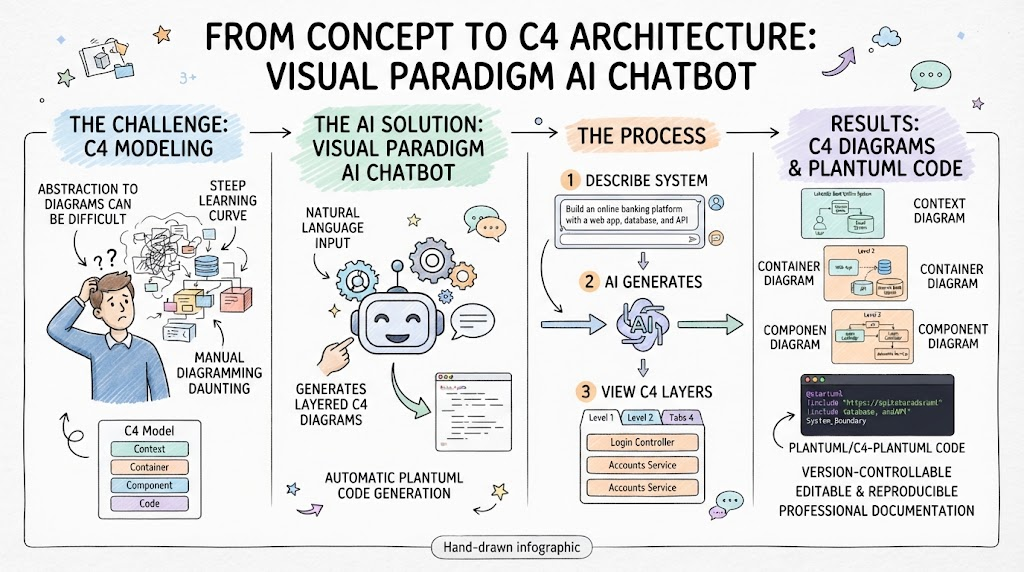
This comprehensive guide explores how to leverage the Visual Paradigm AI Chatbot to build C4 models, using a Lakeside Bank Online Banking Platform case study. We will walk through each level of the C4 model, explain the architectural decisions depicted, provide the exact PlantUML source code, and demonstrate how AI accelerates the journey from concept to professional documentation.
Key Concepts: The C4 Model and AI-Assisted Modeling
Before diving into the diagrams, it is essential to understand the core principles that make this workflow effective.
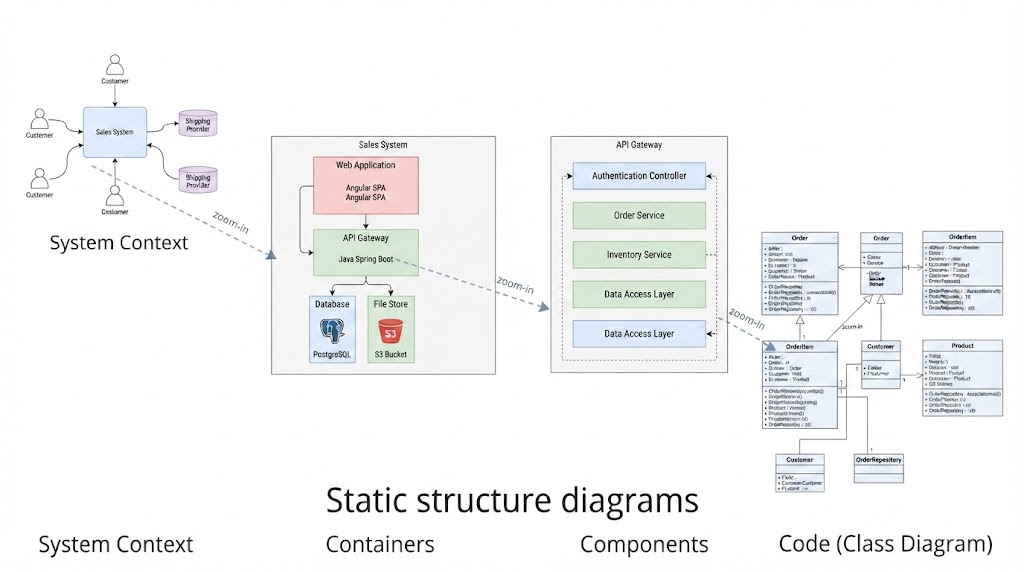
1. The C4 Hierarchy
-
Level 1: System Context: Shows the software system as a black box, its users (actors), and external dependencies. It answers “What is the scope and who cares about it?”
-
Level 2: Container: Zooms into the system to show deployable units (web apps, databases, microservices). It answers “How is the system structured technically?”
-
Level 3: Component: Zooms into a single container to show internal modules, classes, or libraries. It answers “How does this specific unit work internally?”
-
Level 4: Code: (Optional) UML class or sequence diagrams showing implementation details.
2. AI-Driven Architecture Modeling with PlantUML
The Visual Paradigm AI Chatbot acts as an architectural co-pilot. Instead of searching for shapes and manually drawing connectors, you prompt the AI with requirements. The AI understands C4 semantics and generates valid C4-PlantUML code. This means:
-
Version Control Friendly: Diagrams live as text files in your Git repository alongside your application code.
-
Consistent Styling: Macros like
LAYOUT_WITH_LEGEND()andskinparam vpDiagramTypeensure every diagram adheres to team standards automatically. -
Iterative Refinement: You can ask the AI to modify specific relationships or add containers via chat, and it regenerates clean code rather than breaking manual layout.
3. Boundary Management
A critical concept in C4 is the Enterprise Boundary. This visual grouping separates systems your team owns and controls from external third-party systems. Maintaining this distinction across all zoom levels is vital for understanding risk and integration surfaces. In PlantUML, this is explicitly coded using Enterprise_Boundary() and System_Boundary() macros.
Level 1: System Context Diagram – Defining the Scope
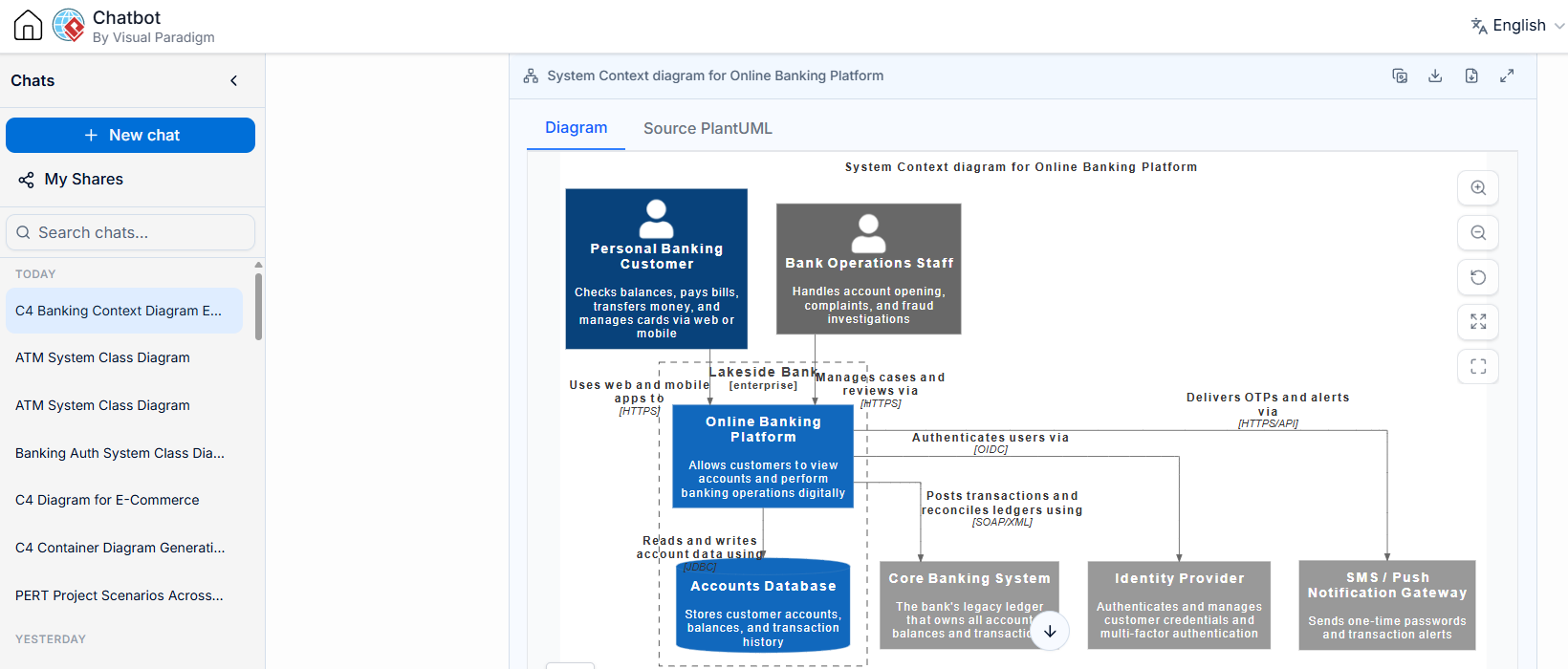
The first step in any C4 engagement is establishing context. Using the Visual Paradigm AI Chatbot, a beginner can generate this foundational diagram by simply describing the banking platform’s ecosystem.
What This Diagram Represents
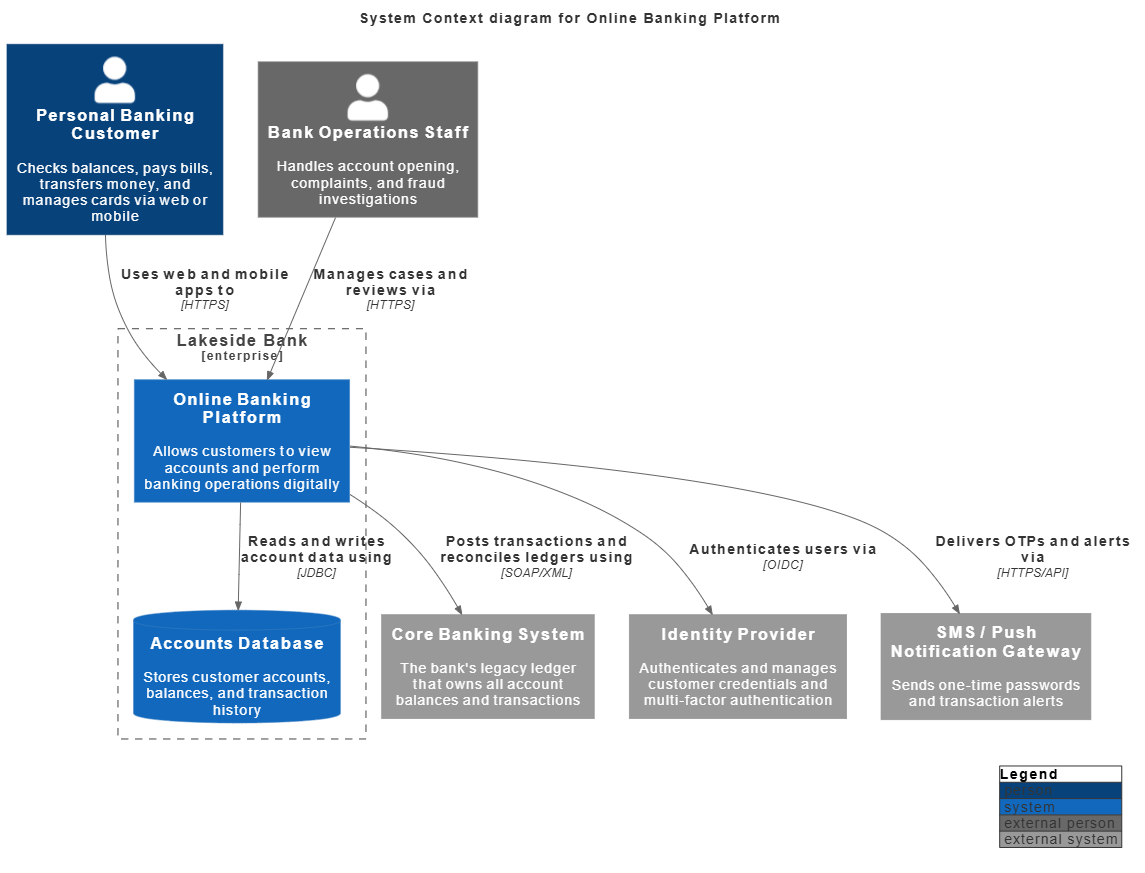
This is a System Context diagram — the highest level of the C4 model. It shows the whole banking platform as a single system (a black box) and focuses on who interacts with it and what external dependencies it relies on.
Key Design Choices Explained
-
Enterprise Boundary (
Lakeside Bank): Visually groups the systems your team owns — the platform itself and its database — separating them from the broader software ecosystem. -
Actor Differentiation:
Personvs.Person_Extdistinguishes internal users (operations staff) from external ones (customers). -
Technology Annotations: Labels on relationships (
HTTPS,SOAP/XML,OIDC,JDBC) add realistic integration detail without cluttering the diagram. -
Self-Explanatory Legend: The
LAYOUT_WITH_LEGEND()call adds the C4 shape legend so the diagram can be shared with non-technical stakeholders.
L1 PlantUML Source Code
Below is the exact code generated by the Visual Paradigm AI Chatbot for this diagram. Note the use of the official C4-PlantUML stdlib and Visual Paradigm-specific skinparams.
@startuml
' skinparam linetype ortho
!include https://raw.githubusercontent.com/plantuml-stdlib/C4-PlantUML/master/C4_Context.puml
skinparam defaultFontSize 14
skinparam defaultFontColor #333333
skinparam vpDiagramType C4modelSystemContextDiagram

LAYOUT_TOP_DOWN()
LAYOUT_WITH_LEGEND()

title System Context diagram for Online Banking Platform

Person(customer, "Personal Banking Customer", "Checks balances, pays bills, transfers money, and manages cards via web or mobile")
Person_Ext(admin, "Bank Operations Staff", "Handles account opening, complaints, and fraud investigations")

Enterprise_Boundary(bank, "Lakeside Bank") {
  System(online_banking, "Online Banking Platform", "Allows customers to view accounts and perform banking operations digitally")
  SystemDb(accounts_db, "Accounts Database", "Stores customer accounts, balances, and transaction history")
}

System_Ext(core_banking, "Core Banking System", "The bank's legacy ledger that owns all account balances and transactions")
System_Ext(identity, "Identity Provider", "Authenticates and manages customer credentials and multi-factor authentication")
System_Ext(push_gateway, "SMS / Push Notification Gateway", "Sends one-time passwords and transaction alerts")

Rel(customer, online_banking, "Uses web and mobile apps to", "HTTPS")
Rel(admin, online_banking, "Manages cases and reviews via", "HTTPS")
Rel(online_banking, accounts_db, "Reads and writes account data using", "JDBC")
Rel(online_banking, core_banking, "Posts transactions and reconciles ledgers using", "SOAP/XML")
Rel(online_banking, identity, "Authenticates users via", "OIDC")
Rel(online_banking, push_gateway, "Delivers OTPs and alerts via", "HTTPS/API")

@enduml
💡 Beginner Tip: When prompting the AI for Level 1, explicitly list your actors and external systems. Ask the AI to “apply enterprise boundary styling” and “include protocol labels on all relationships” to ensure professional output matching the code above.
Level 2: Container Diagram – Opening the Black Box
Once the context is established, the next logical step is to decompose the system into its technical building blocks. The AI Chatbot can take the Level 1 context and expand it into a Container diagram while preserving external references.
L2 – Container Diagram
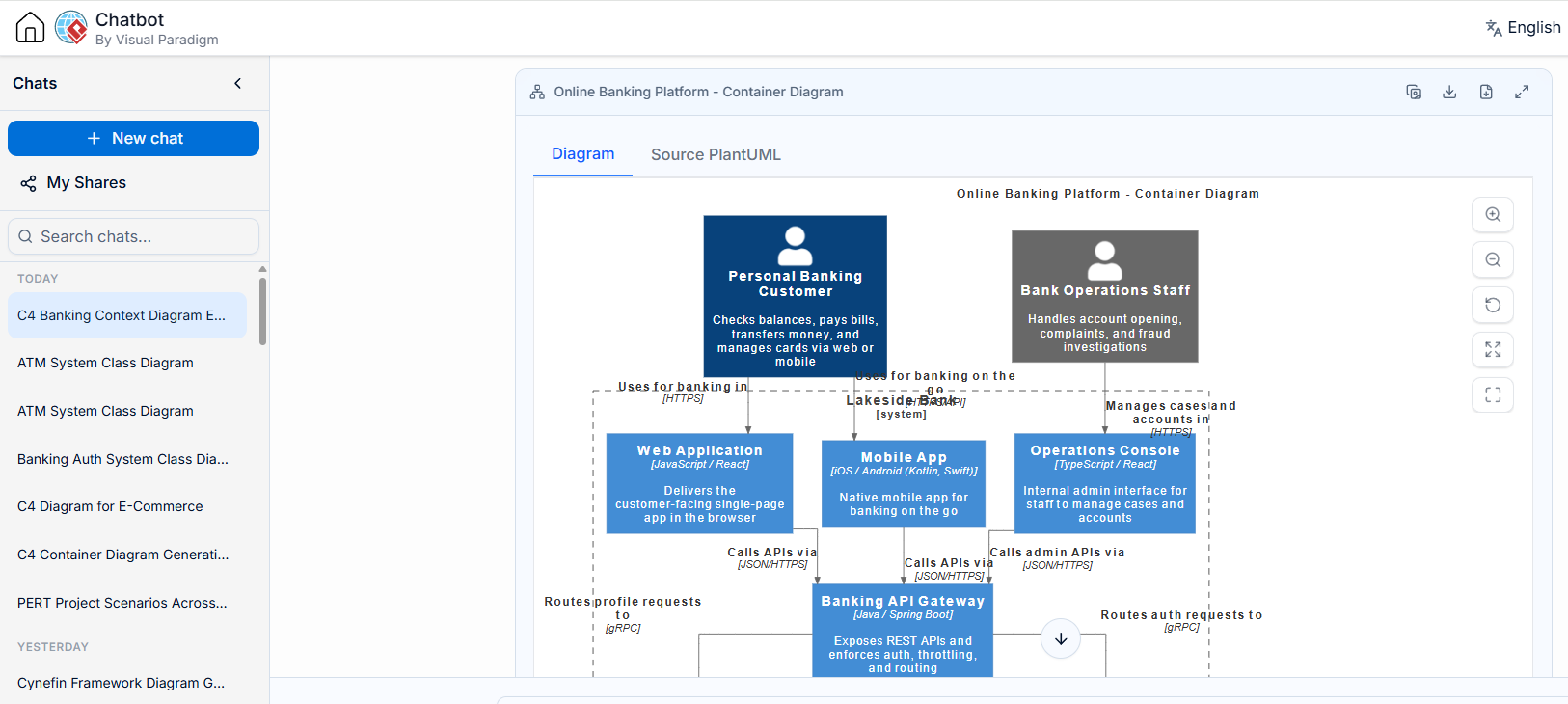
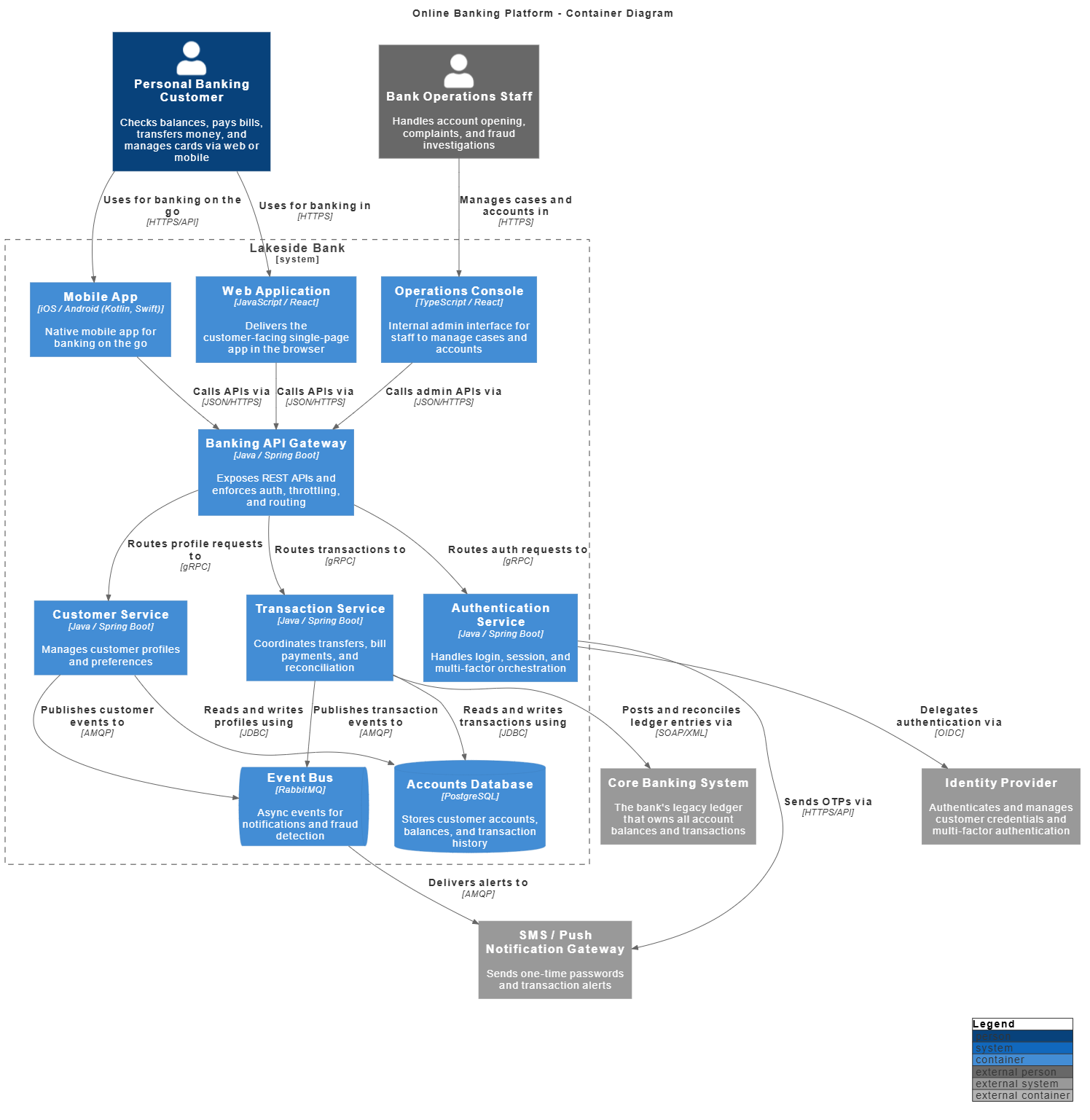
What Changed From Level 1
The context diagram’s single “Online Banking Platform” black box is now opened up to show the deployable units (containers):
-
Frontends:
Web Application,Mobile App, andOperations Consoleeach connect to the API gateway rather than to backend services directly. -
Backends: The
Banking API Gatewayroutes traffic to three lightweight services:Authentication,Transaction, andCustomer. -
Persistence & Messaging: A single
PostgreSQLdatabase plus aRabbitMQevent bus for asynchronous notification flow. -
External Consistency: External systems remain intact from Level 1, now wired to specific internal containers.
Design Notes for Beginners
-
Technology Stack Visibility: Each container includes its tech stack (React, Spring Boot, PostgreSQL). This is exactly what Level 2 is meant to convey.
-
Async Decoupling: The
ContainerQueue(events_queue, "Event Bus", "RabbitMQ")element demonstrates async messaging between services and the notification gateway. -
Boundary Discipline:
Person,Person_Ext, andSystem_Extelements all remain outside theSystem_Boundary.
L2 PlantUML Source Code
Notice how the AI correctly uses Container, ContainerDb, and ContainerQueue macros, and maintains consistent alias naming from Level 1 for traceability.
@startuml
' skinparam linetype ortho
!include https://raw.githubusercontent.com/plantuml-stdlib/C4-PlantUML/master/C4_Container.puml
skinparam defaultFontSize 14
skinparam defaultFontColor #333333
skinparam vpDiagramType C4modelContainerDiagram

LAYOUT_TOP_DOWN()
LAYOUT_WITH_LEGEND()

title Online Banking Platform - Container Diagram

Person(customer, "Personal Banking Customer", "Checks balances, pays bills, transfers money, and manages cards via web or mobile")
Person_Ext(admin, "Bank Operations Staff", "Handles account opening, complaints, and fraud investigations")

System_Boundary(bank, "Lakeside Bank") {
  Container(web_app, "Web Application", "JavaScript / React", "Delivers the customer-facing single-page app in the browser")
  Container(mobile_app, "Mobile App", "iOS / Android (Kotlin, Swift)", "Native mobile app for banking on the go")
  Container(admin_console, "Operations Console", "TypeScript / React", "Internal admin interface for staff to manage cases and accounts")
  Container(api, "Banking API Gateway", "Java / Spring Boot", "Exposes REST APIs and enforces auth, throttling, and routing")
  Container(auth_svc, "Authentication Service", "Java / Spring Boot", "Handles login, session, and multi-factor orchestration")
  Container(transaction_svc, "Transaction Service", "Java / Spring Boot", "Coordinates transfers, bill payments, and reconciliation")
  Container(customer_svc, "Customer Service", "Java / Spring Boot", "Manages customer profiles and preferences")
  ContainerDb(accounts_db, "Accounts Database", "PostgreSQL", "Stores customer accounts, balances, and transaction history")
  ContainerQueue(events_queue, "Event Bus", "RabbitMQ", "Async events for notifications and fraud detection")
}

System_Ext(core_banking, "Core Banking System", "The bank's legacy ledger that owns all account balances and transactions")
System_Ext(identity, "Identity Provider", "Authenticates and manages customer credentials and multi-factor authentication")
System_Ext(push_gateway, "SMS / Push Notification Gateway", "Sends one-time passwords and transaction alerts")

Rel(customer, web_app, "Uses for banking in", "HTTPS")
Rel(customer, mobile_app, "Uses for banking on the go", "HTTPS/API")
Rel(admin, admin_console, "Manages cases and accounts in", "HTTPS")
Rel(web_app, api, "Calls APIs via", "JSON/HTTPS")
Rel(mobile_app, api, "Calls APIs via", "JSON/HTTPS")
Rel(admin_console, api, "Calls admin APIs via", "JSON/HTTPS")
Rel(api, auth_svc, "Routes auth requests to", "gRPC")
Rel(api, transaction_svc, "Routes transactions to", "gRPC")
Rel(api, customer_svc, "Routes profile requests to", "gRPC")
Rel(auth_svc, identity, "Delegates authentication via", "OIDC")
Rel(auth_svc, push_gateway, "Sends OTPs via", "HTTPS/API")
Rel(transaction_svc, accounts_db, "Reads and writes transactions using", "JDBC")
Rel(customer_svc, accounts_db, "Reads and writes profiles using", "JDBC")
Rel(customer_svc, events_queue, "Publishes customer events to", "AMQP")
Rel(transaction_svc, events_queue, "Publishes transaction events to", "AMQP")
Rel(transaction_svc, core_banking, "Posts and reconciles ledger entries via", "SOAP/XML")
Rel(events_queue, push_gateway, "Delivers alerts to", "AMQP")

@enduml
💡 Beginner Tip: Ask the Visual Paradigm AI to “generate a container diagram based on my context diagram” to maintain alias consistency. Specify your tech stack in the prompt to get accurate technology annotations in the third parameter of each
Container()macro.
Level 3: Component Diagram – Inside the Gateway
Level 3 is where many beginners struggle because it requires decomposing one specific container while treating everything else as opaque context. The AI Chatbot excels here by generating focused component views with correct Container_Boundary scoping.
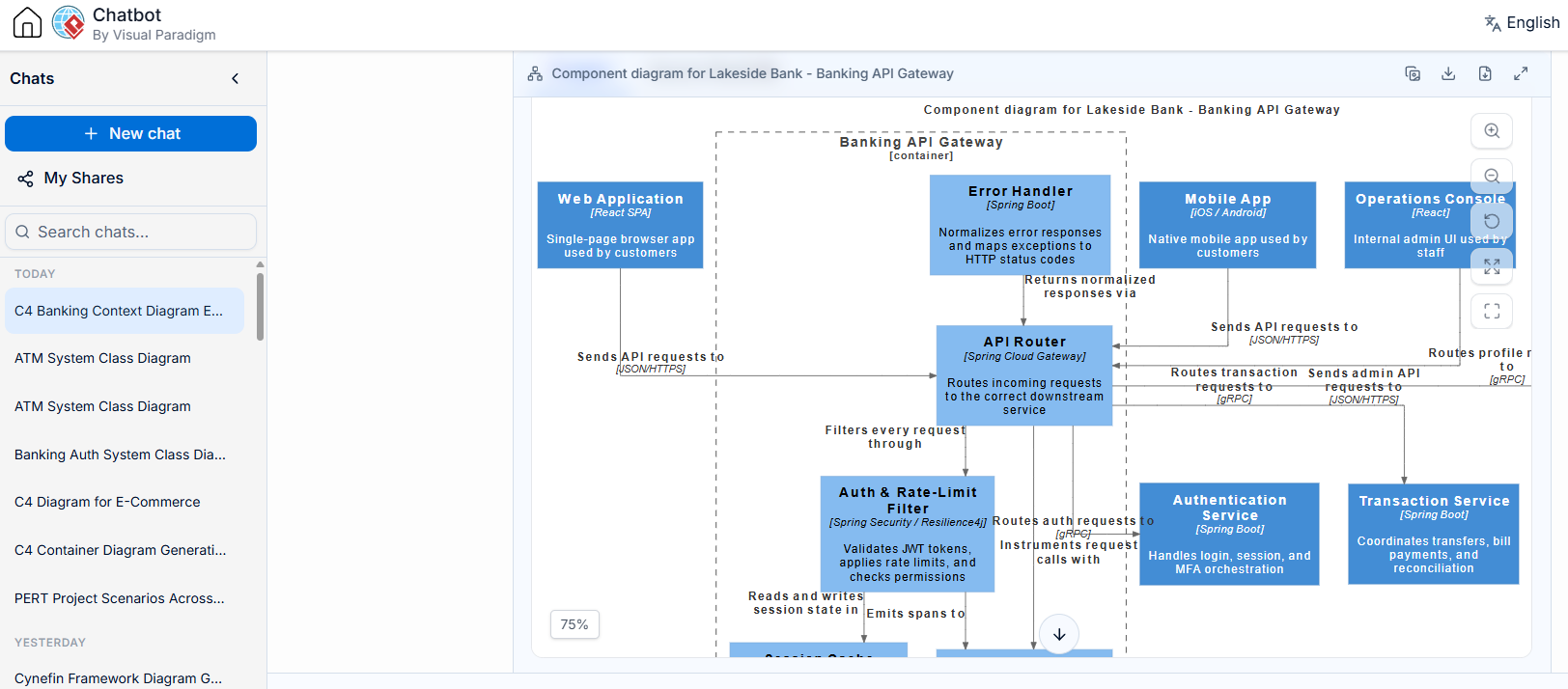
L3 – Component Diagram – Banking API Gateway (Container)
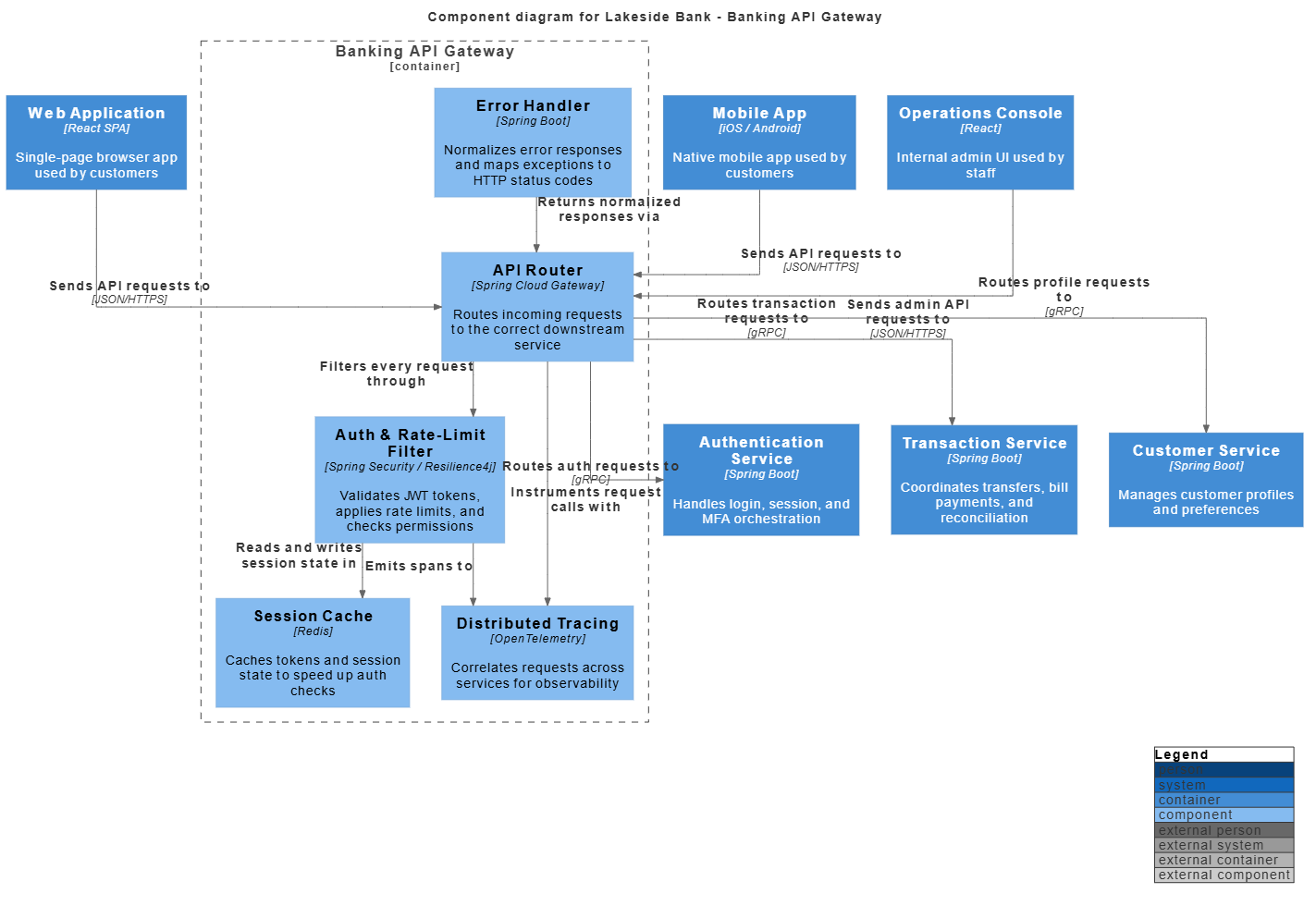
What This Level 3 Diagram Shows
This zooms into the Banking API Gateway container and decomposes it into its internal software components. Per C4 guidance, it picks one container to decompose — the frontends and downstream services remain as opaque context around it.
The Gateway’s Internal Structure
-
API Router(Spring Cloud Gateway): Routes incoming requests to downstream services. -
Auth & Rate-Limit Filter: Validates JWT tokens, enforces rate limits (Resilience4j), and checks permissions. -
Session Cache(Redis): Latency optimization for auth checks. -
Distributed Tracing(OpenTelemetry): Observability plumbed through the routing path. -
Error Handler: Normalizes failures into consistent HTTP responses.
L3 PlantUML Source Code
At Level 3, note the use of Component() macros inside a Container_Boundary(). External containers are referenced without redefining their internals, maintaining the correct abstraction level.
@startuml
' skinparam linetype ortho
!include https://raw.githubusercontent.com/plantuml-stdlib/C4-PlantUML/master/C4_Component.puml
skinparam defaultFontSize 14
skinparam defaultFontColor #333333
skinparam vpDiagramType C4modelComponentDiagram

LAYOUT_WITH_LEGEND()

title Component diagram for Lakeside Bank - Banking API Gateway

Container(web_app, "Web Application", "React SPA", "Single-page browser app used by customers")
Container(mobile_app, "Mobile App", "iOS / Android", "Native mobile app used by customers")
Container(admin_console, "Operations Console", "React", "Internal admin UI used by staff")

Container_Boundary(api_gw, "Banking API Gateway") {
  Component(routing, "API Router", "Spring Cloud Gateway", "Routes incoming requests to the correct downstream service")
  Component(auth_filter, "Auth & Rate-Limit Filter", "Spring Security / Resilience4j", "Validates JWT tokens, applies rate limits, and checks permissions")
  Component(tracing, "Distributed Tracing", "OpenTelemetry", "Correlates requests across services for observability")
  Component(cache, "Session Cache", "Redis", "Caches tokens and session state to speed up auth checks")
  Component(error_handler, "Error Handler", "Spring Boot", "Normalizes error responses and maps exceptions to HTTP status codes")
}

Container(auth_svc, "Authentication Service", "Spring Boot", "Handles login, session, and MFA orchestration")
Container(transaction_svc, "Transaction Service", "Spring Boot", "Coordinates transfers, bill payments, and reconciliation")
Container(customer_svc, "Customer Service", "Spring Boot", "Manages customer profiles and preferences")

Rel(web_app, routing, "Sends API requests to", "JSON/HTTPS")
Rel(mobile_app, routing, "Sends API requests to", "JSON/HTTPS")
Rel(admin_console, routing, "Sends admin API requests to", "JSON/HTTPS")
Rel(routing, auth_filter, "Filters every request through", "")
Rel(auth_filter, cache, "Reads and writes session state in", "")
Rel(auth_filter, tracing, "Emits spans to", "")
Rel(routing, tracing, "Instruments request calls with", "")
Rel(error_handler, routing, "Returns normalized responses via", "")
Rel(routing, auth_svc, "Routes auth requests to", "gRPC")
Rel(routing, transaction_svc, "Routes transaction requests to", "gRPC")
Rel(routing, customer_svc, "Routes profile requests to", "gRPC")

@enduml
💡 Beginner Tip: At Level 3, be specific about which container to decompose. Prompt the AI with “Show components inside the Banking API Gateway container only” to avoid over-decomposition. Notice that internal component relationships (like
routing→auth_filter) omit the technology label when it’s an in-process call, keeping the diagram clean.
Understanding the Chatbot UI
Knowing what to model is only half the battle; knowing how to interact with the tool is equally important. Visual Paradigm’s AI Chatbot interface is designed to make C4 modeling conversational while exposing the underlying PlantUML code.
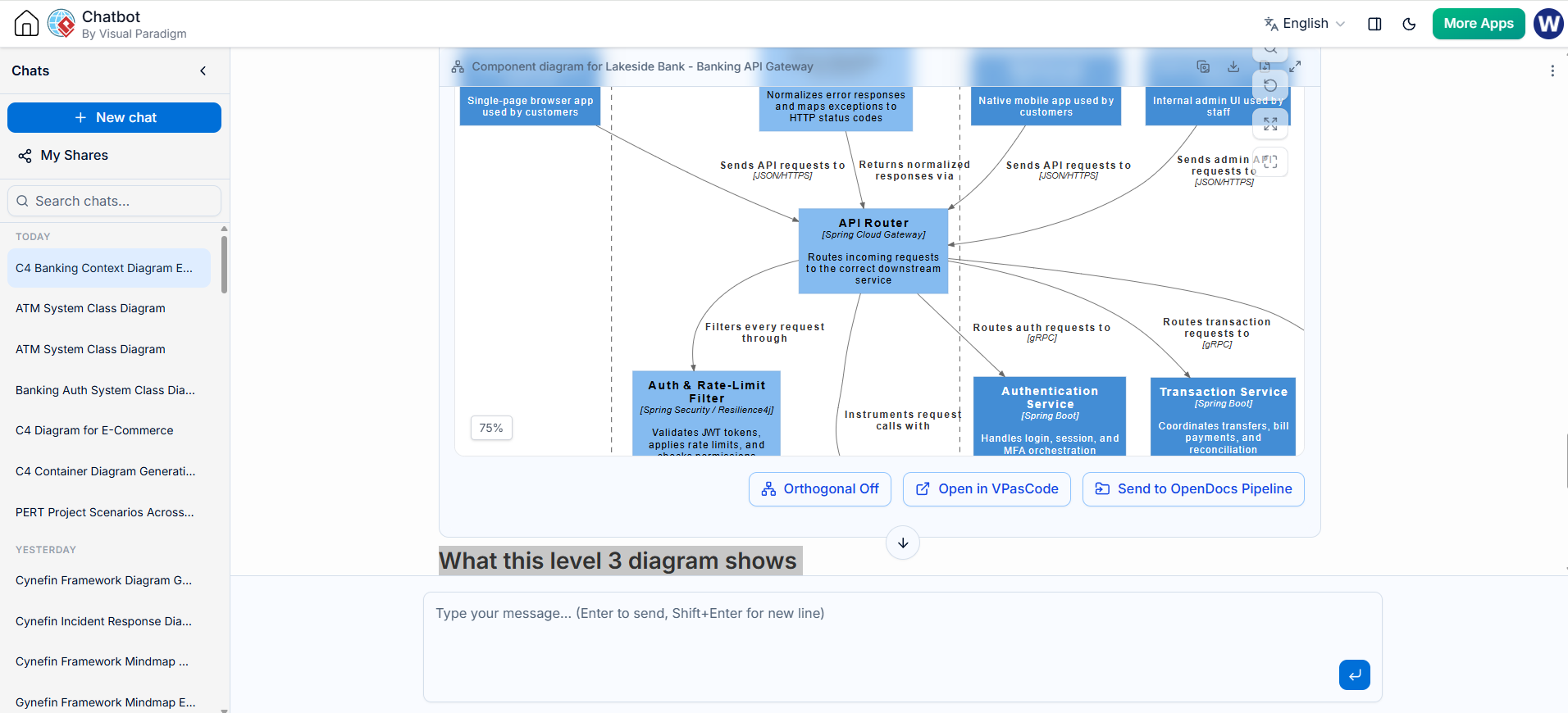
Key UI Elements for Beginners
-
Conversational Canvas: The chat panel allows you to iteratively refine diagrams. If the AI generates a container diagram missing the message queue, simply type “Add RabbitMQ between Transaction Service and Notification Gateway” and receive updated PlantUML code instantly.
-
Code + Visual Sync: Generated PlantUML code appears alongside the rendered diagram. You can edit the code directly or continue chatting — both paths stay synchronized.
-
Diagram Preview & Export: Rendered diagrams can be exported as PNG, SVG, or PDF for documentation, while the PlantUML source stays in your repository.
-
Prompt History & Templates: Previous prompts are saved, allowing you to reuse successful patterns. Built-in C4 prompt templates help beginners structure requests effectively.
-
Validation Feedback: The chatbot can review your generated code against C4 best practices and suggest improvements, acting as an automated architecture mentor.
Conclusion
The C4 model provides the structure; Visual Paradigm’s AI Chatbot provides the acceleration. For beginners, this combination eliminates the paralysis that often accompanies blank-canvas architecture modeling. By starting with natural language descriptions and receiving production-ready PlantUML code in return, new architects can produce professional-grade System Context, Container, and Component diagrams in a fraction of the traditional time.
The Lakeside Bank example demonstrates that AI-generated C4 diagrams are not simplistic toys — they embody real architectural decisions: enterprise boundaries, async decoupling, gateway patterns, and technology-specific annotations. The inclusion of full PlantUML source code at every level means these diagrams are living artifacts, not static deliverables. They can be version-controlled, reviewed in pull requests, and regenerated as the system evolves.
Your next step: Open Visual Paradigm, launch the AI Chatbot, and describe your own system. Start at Level 1, let the AI generate the PlantUML, render the diagram, and zoom in one level at a time. The map will emerge from the conversation — and the code will keep it alive.